After you enter a complete address on the Addresses tab on the Contacts screen, you can click the button just above it. This checks the address you entered with the US Postal Service server to verify that it is a mailable address. If it is, Keystone will use the information from the USPS server to standardize the address. You can use this single address validation on any address you enter or change.
Keystone can only check mailing addresses within the United States.
After the validation is completed, Keystone adds text to the Notes field here to document the history of this address. If the address fails to validate, a red note will appear just below the address fields to help you correct the error. If you do not like the standardization, you can override the change. If you do so, do not click the button again.
You can also check and validate all of the addresses in your Keystone database in batch. To do this, click the Standardize Addresses option on the Tools tab of the Keystone Ribbon.
You must be logged in to Keystone with Administrator-level access to use the Standardize Addresses option.
This batch process will attempt to validate and standardize all active contact mail addresses in Keystone. This process can take 30 minutes to 2 hours and should be run when no one else in logged into Keystone.
You only need to run this process once unless you reach a point in the future where you end up with numerous nonstandard addresses in your database and need to run it again. You can validate an individual address when you enter a new address or edit an existing address by clicking the button on the Addresses tab on the Contacts screen.
As this process is running, Keystone will add text to the Notes field for each address, logging what happened as the address was validated. If for any reason the address is not valid, a red note will appear just below the address fields on each incorrect address to help you correct the error.
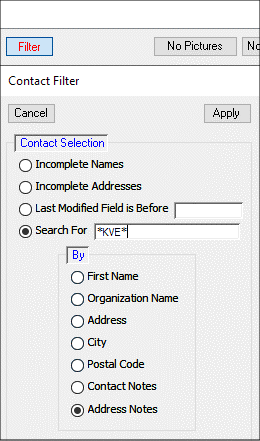
To find the contacts with these errors, you can open the Addresses tab on the Contacts screen and use the button to search the Notes field for *KVE*. (See below) KVE stands for Keystone Validation Error. If you use the * character before and afterKVE, it will find all of these entries.
Alternatively, you can run the Contact Address report and use the Address notes filter on this report to print out a list of contacts with errors.
Once you correct the error on a particular record, you should delete its KVE entry in the Notes field. This will remove that address from future searches for addresses that need to be fixed.