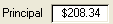
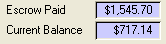

Basic fields are used for entering or displaying information.

Placing your cursor over a field for a few seconds without clicking your mouse is known as “hovering your cursor”. In many cases hovering your cursor over a field will provide additional information about that field.
For example, hovering over a label with an abbreviation will generally tell you what that abbreviation stands for; and hovering over Escrow Analysis fields will tell you how the value was calculated.
Normal state:

Drop-down state:
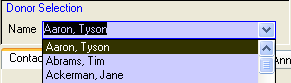
Drop-down lists allow you to enter values into a field by selecting them from a list. These fields always have a  at the right edge of the field. If you click this button, a list will drop down below the field. If the list is long enough, a scroll bar will appear that you can use to move up and down through the list.
Fields with drop-down lists allow you to select a specific record or records for review or editing; or set a field's value from a predetermined list. The latter type may occur anywhere on the screen, depending on the context.
Fields that allow you to select a record or records to view on a screen - such as selecting a particular contact to work with on the Contacts screen - generally appear in the upper half of any screen on which they are used. They remain visible even if you change tabs within that screen. In some cases, a screen will have multiple drop-down lists like this. These allow you to select a record by whichever means is most convenient or relevant to your search. For example, you can select a family partner either by name or address using the Family Partners screen.
In long lists, if you have some idea of the value you want, you can start typing it into the drop-down list. As you type, the first item in the list that matches what you type is displayed. Everything you type appears with blue shading. The remainder of the “match” is filled in with a black highlight. When you find the value in the list you want, you can select it with your mouse or press Tab or Enter while the value is highlighted.

If no item matches what you type, the space after your text will become blank. In this case, use your keyboard's Backspace key to remove what you typed and try again. This is particularly useful when selecting something like a last name from a list.

If you leave a value in the drop-down lists that does not match an item from the list, when you try to use another command, the field will be reset to its previous value.
If the drop-down list has a blue background, you can only enter values that are included in the list. If the drop-down list has a white background - such as the Title field on the Contact screen - you can enter a value that is not in the list. If you do, you are given the option of adding that entry to the list so that the next time the list will include that value.
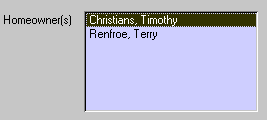
A list box allows you to make multiple selections for a single field. Most of the list boxes in Keystone are used on the Reports screen. For example, the Family Services > Sweat Equity > By Activity report allows you to choose to generate that report for all activities, for a single activity, or for any combination of activities.
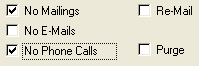
Check boxes allow you to select between one of two choices, something that “is” or “is not”. An example is the No Mailings check box on the Contact screen. If the No Mailings check box is not checked, you can send mail to that contact. If it is checked, you should not send mail to that contact.
Display fields have a blue shaded background, but lack the button of drop-down lists. These fields provide information only. This information might be data from related records that cannot be edited in this context (such as categories on the Contacts screen) or the result of a calculation (such as the mortgage and escrow payment currently due from a homeowner).
You can only change the field’s value by editing it on the screen from which it originated. If the field is based on a calculation, it will automatically update if any value used in that calculation is changed elsewhere.
Normal state:
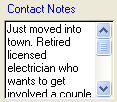
Editing window open:
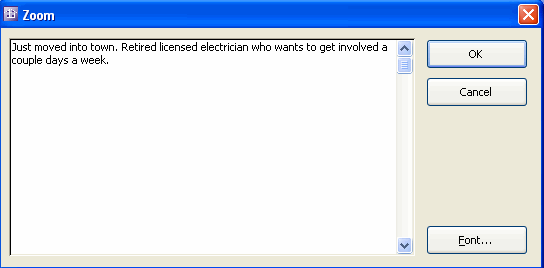
Memo fields are provided in various contexts, such as with log entries, donation records, or volunteer time scheduling. The limited space on any given screen generally restricts these fields to display only a few words. However, you can enter virtually any amount of text into a memo field. Double-clicking these fields will cause a window to open that will allow you to read the entire text of the field. Notes and Log entries are memo fields.
When you finish editing a memo field, close the editing window. Everything you entered is saved into the memo field, though only the first few words are visible. Most reports that include notes display the entire note.
For log entries, since you can only see the first part of a memo field, be sure to put the subject of the entry close to the beginning so that as you scan logs for an entry you will be able to find it.
Normally when you are entering text into the memo editing window, if you press the Enter key, the window will close. If you want to include a carriage return in your memo field, hold down the Ctrl (Control) key while you hit Enter and it will add a carriage return, stay in the memo field, and allow you to continue to enter text.
You can enter dates into Keystone either by entering them manually into the field or by using the Keystone calendar function. Date fields allow you to enter dates in “free form”, which means you can enter the date numbers in a variety of ways. For example: 8/8, 8/8/06, 08/08/06, 08/08/2006, 080806, and many others are all acceptable forms of the same date. Please refer to the Keystone Calendar section for more information on the calendar.
Unlike other fields, since Date fields accept free-form input, you cannot edit part of a date in place. For example, if you have the date 9/17/2006, you cannot simply change the 7 to an 8 within the field. You must reenter the date.
If your affiliate is not in the United States, be sure to change the Region settings on your Windows Control Panel and the Country field on the Affiliate Tab in Affiliate Setup in Keystone to get the date formats that are specific to your country.
Monetary fields expect numbers expressed in dollars and cents. It is not necessary to type the $ symbol when entering a value, though it will be displayed automatically once you enter it.
The Contacts screen and the major functional screens (Donor, Covenant Partner, Volunteer, and Property Acquisition) have Last Modified Date fields in the lower-left corner of the screen. The Last Modified Date on a functional screen indicates the last time any of the functional information was changed for the selected contact.
The Last Modified Date on the Contact screen indicates the last time any information was modified for the selected contact.
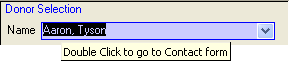
Fields that can be used for navigation have a blue border and, if you hover your cursor over them, will display where they link to if you double-click them.
On many screens in Keystone, you can transfer to another screen to get more information on the person/organization you are working with by double-clicking on a navigation field. For example, on the Family Partner screen, if Payment Status is referring to Closing Fees and you double-click on it, the Closing Fee screen opens and you can review the closing fee payments to determine how the closing fee status was determined. If instead Payment Status is referring to Mortgage Payments, and you double-click on it, the Mortgage Payment screen opens and you can do a similar review with mortgage payments..
When you transfer to another screen, that screen opens showing the person/organization displayed on the screen you just came from. The button on this screen becomes a button. Clicking the button returns you to the screen you started from.
Only a single transfer can be done at a time. If you transfer to a different screen, you cannot then transfer from that screen to a third screen.
Right-clicking on any field in Keystone brings up a menu that will allow you to Cut, Copy or Paste.